> ## Documentation Index
> Fetch the complete documentation index at: https://docs.eofvpn.cc/llms.txt
> Use this file to discover all available pages before exploring further.
# Configuring EOFVPN on macOS, iOS, AppleTV
> All settings in the apps are the same for all devices on macOS, iOS, AppleTV operating systems
# Streisand application
1. Download the Streisand app from the AppStore by searching by name or by direct link -> [**Download** Streisand ](https://apps.apple.com/us/app/streisand/id6450534064)
2. Go to [configurations](https://sub.eofvpn.cc/) (configurations are provided with the free VPN subscription. Premium users are given a personalized subscription link).
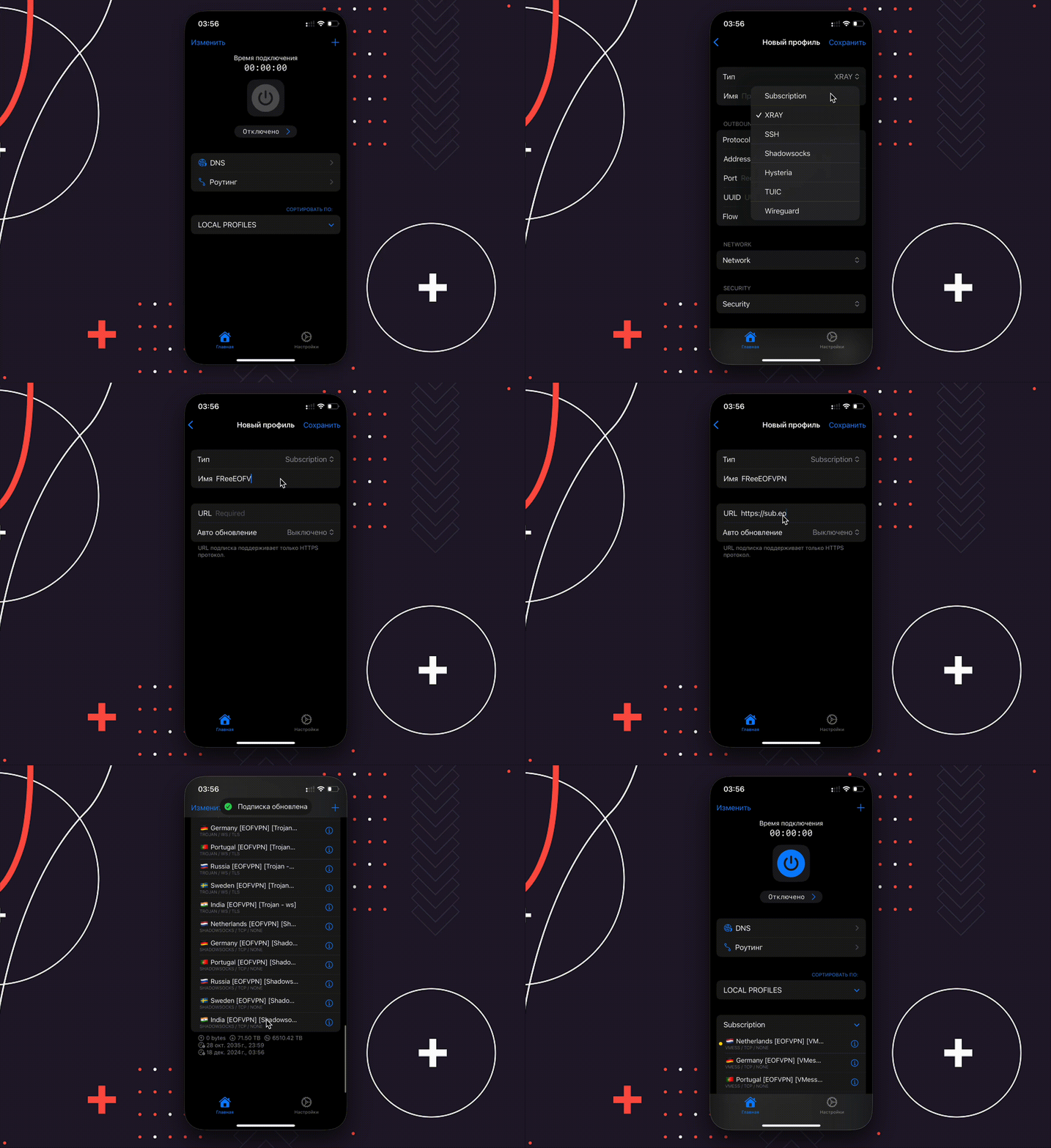
3. Repeat the steps from the instructions in the GIF below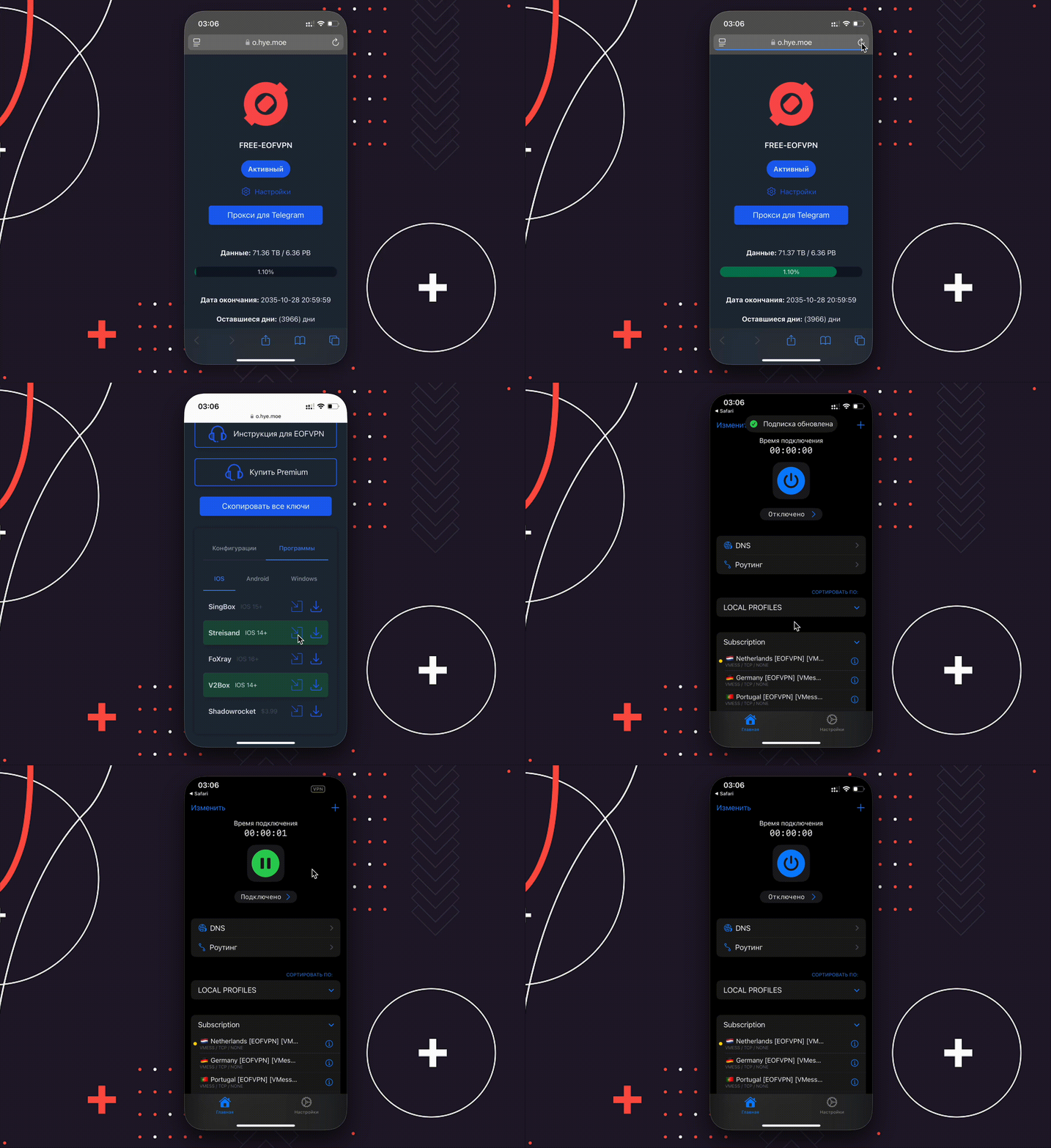 If for some strange reason the method described above does not work. Let's add configurations in manual mode:
 # ShadowRocket application
1. Download the ShadowRocket app from the AppStore by searching by name or by direct link -> [**Download** ShadowRocket ](https://apps.apple.com/ru/app/shadowrocket/id932747118)
2. Go to [configurations](https://sub.eofvpn.cc/) (configurations are provided with the free VPN subscription. Premium users are given a personalized subscription link).
3. Repeat the steps from the instructions in the GIF below
# ShadowRocket application
1. Download the ShadowRocket app from the AppStore by searching by name or by direct link -> [**Download** ShadowRocket ](https://apps.apple.com/ru/app/shadowrocket/id932747118)
2. Go to [configurations](https://sub.eofvpn.cc/) (configurations are provided with the free VPN subscription. Premium users are given a personalized subscription link).
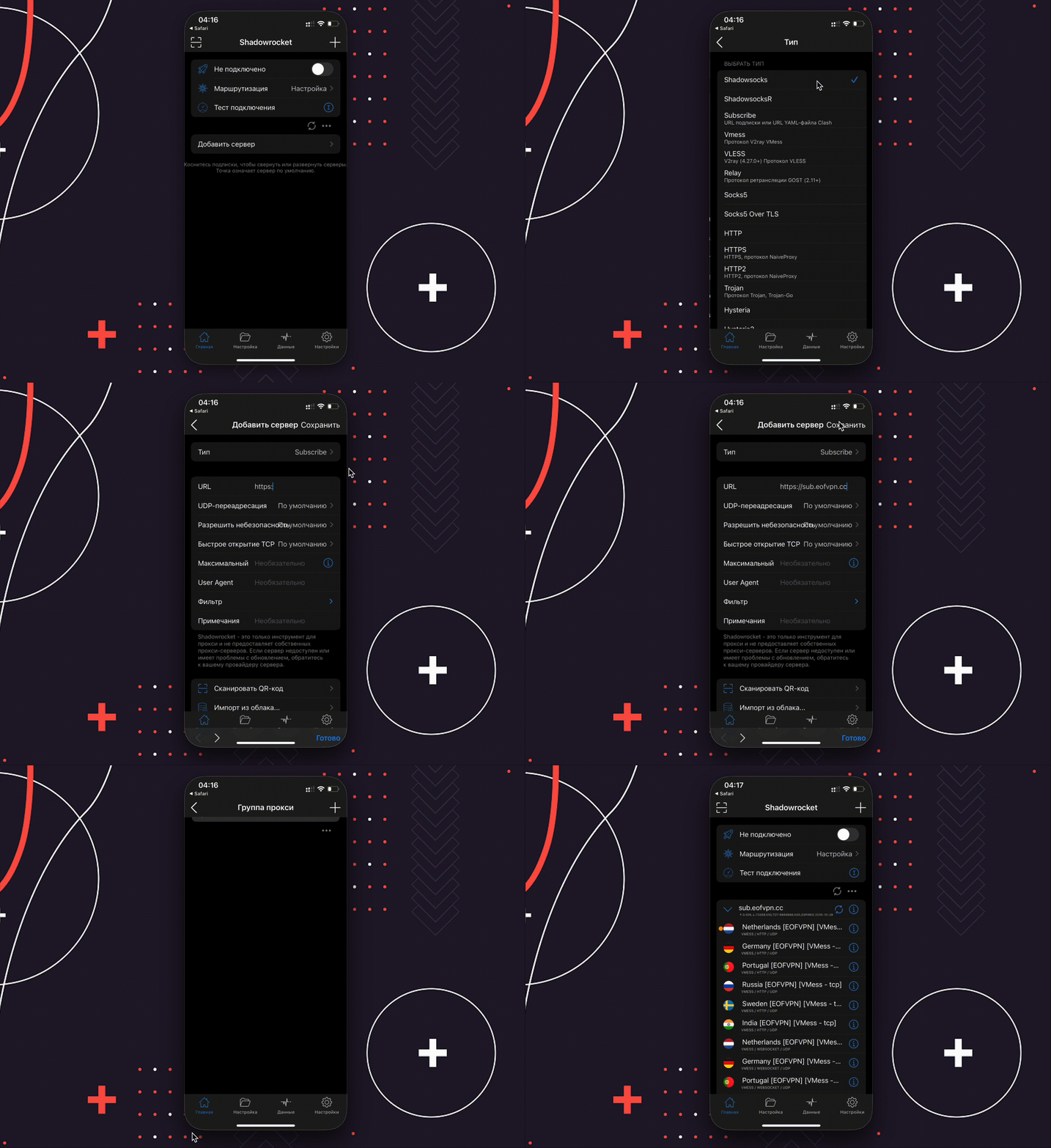
3. Repeat the steps from the instructions in the GIF below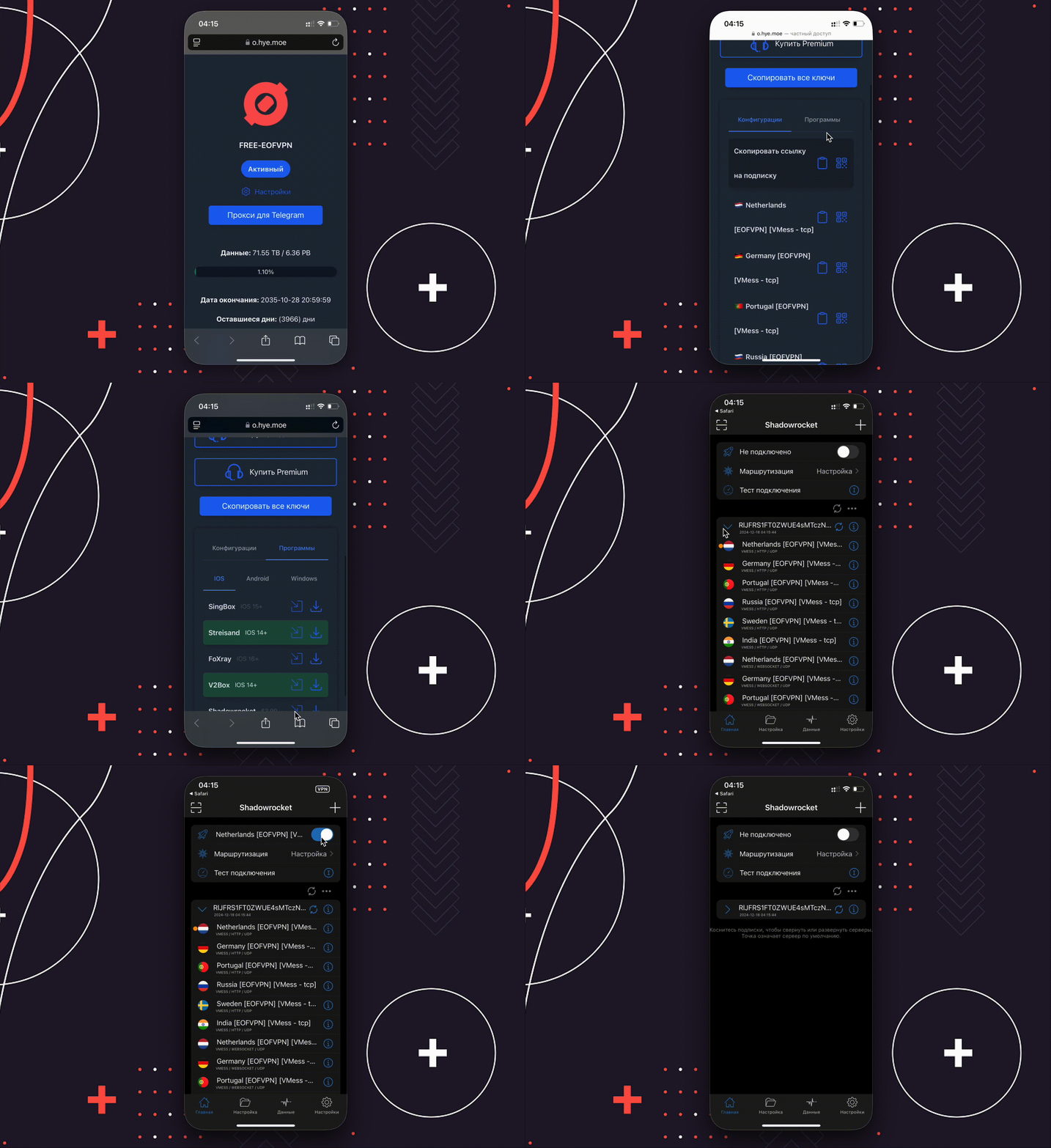 If for some strange reason the method described above does not work. Let's add configurations in manual mode:
 # SingBox application
1. Download the SingBox app from the AppStore by searching by name or by direct link -> [**Download** SingBox ](https://apps.apple.com/us/app/sing-box/id6451272673)
2. Go to [configurations](https://sub.eofvpn.cc/) (configurations are provided with the free VPN subscription. Premium users are given a personalized subscription link).
3. Repeat the steps from the instructions in the GIF below
# SingBox application
1. Download the SingBox app from the AppStore by searching by name or by direct link -> [**Download** SingBox ](https://apps.apple.com/us/app/sing-box/id6451272673)
2. Go to [configurations](https://sub.eofvpn.cc/) (configurations are provided with the free VPN subscription. Premium users are given a personalized subscription link).
3. Repeat the steps from the instructions in the GIF below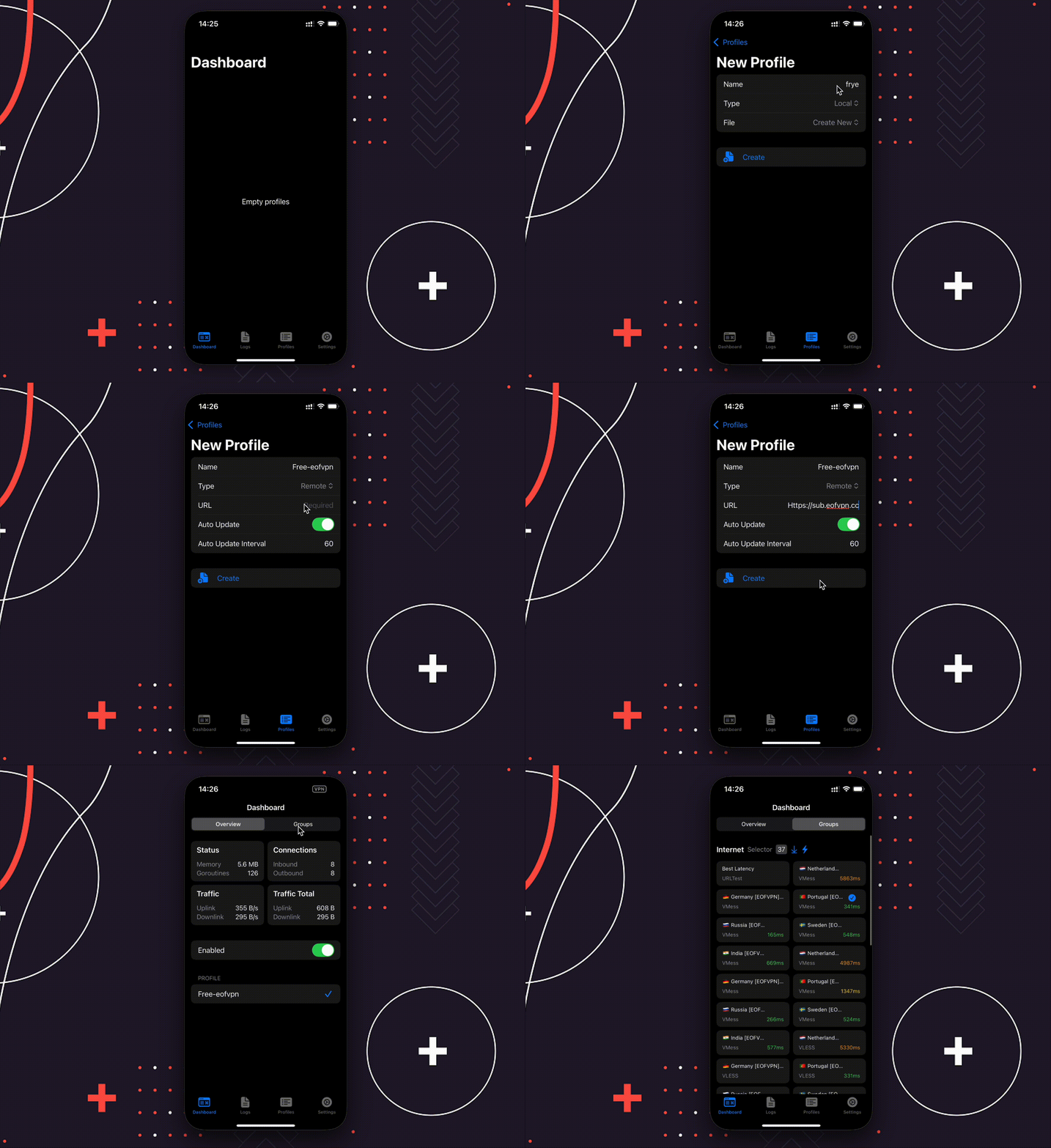 # V2BOX application
1. Download the V2BOX app from the AppStore by searching by name or by direct link -> [**Download** V2BOX ](https://apps.apple.com/us/app/v2box-v2ray-client/id6446814690)
2. Go to [configurations](https://sub.eofvpn.cc/) (configurations are provided with the free VPN subscription. Premium users are given a personalized subscription link).
3. Repeat the steps from the instructions in the GIF below
# V2BOX application
1. Download the V2BOX app from the AppStore by searching by name or by direct link -> [**Download** V2BOX ](https://apps.apple.com/us/app/v2box-v2ray-client/id6446814690)
2. Go to [configurations](https://sub.eofvpn.cc/) (configurations are provided with the free VPN subscription. Premium users are given a personalized subscription link).
3. Repeat the steps from the instructions in the GIF below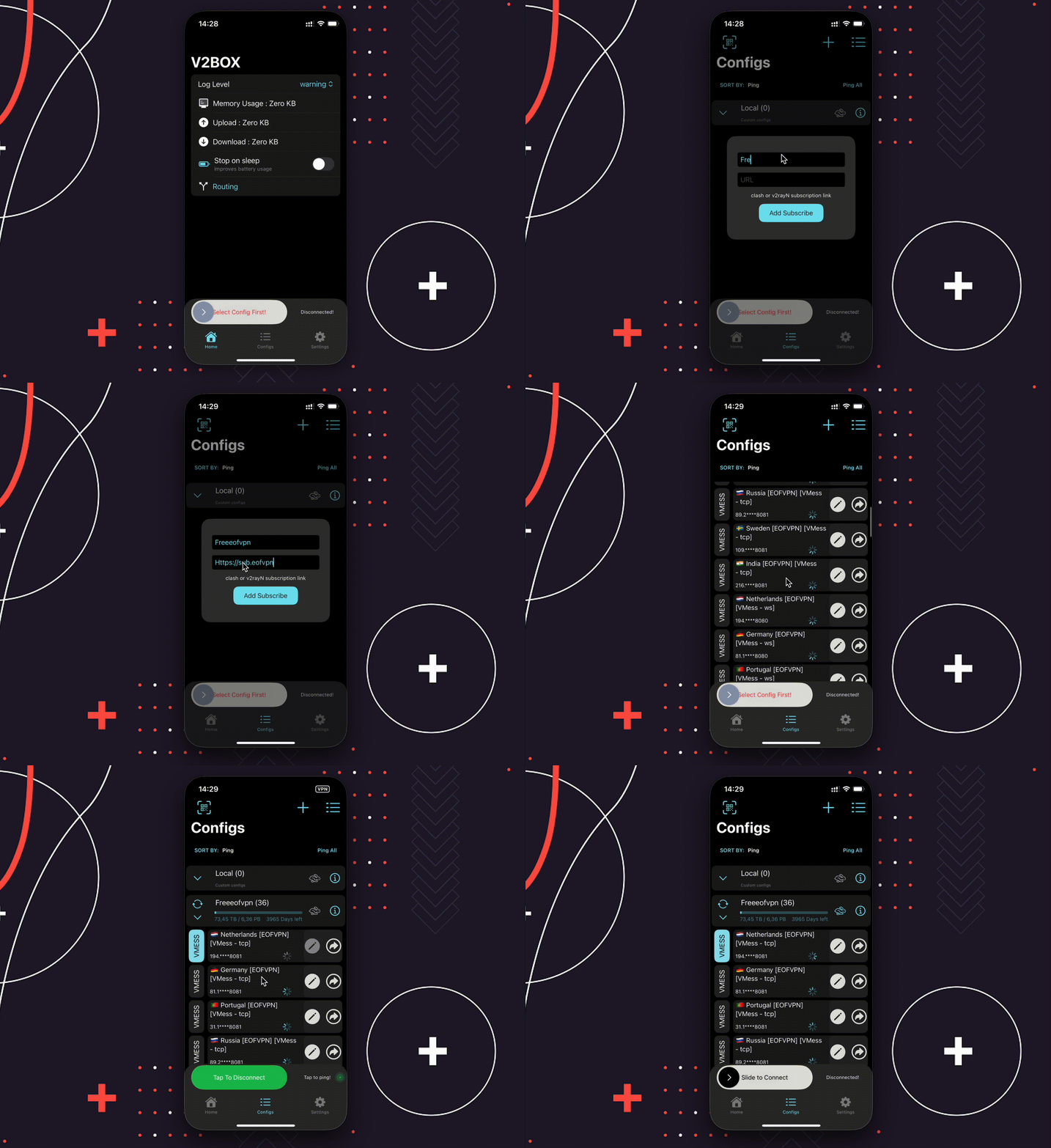 # FoxRay application
1. Download the FoxRay app from the AppStore by searching by name or by direct link -> [**Download** FoxRay ](https://apps.apple.com/us/app/foxray/id6448898396)
2. Go to [configurations](https://sub.eofvpn.cc/) (configurations are provided with the free VPN subscription. Premium users are given a personalized subscription link).
3. Repeat the steps from the instructions in the GIF below
# FoxRay application
1. Download the FoxRay app from the AppStore by searching by name or by direct link -> [**Download** FoxRay ](https://apps.apple.com/us/app/foxray/id6448898396)
2. Go to [configurations](https://sub.eofvpn.cc/) (configurations are provided with the free VPN subscription. Premium users are given a personalized subscription link).
3. Repeat the steps from the instructions in the GIF below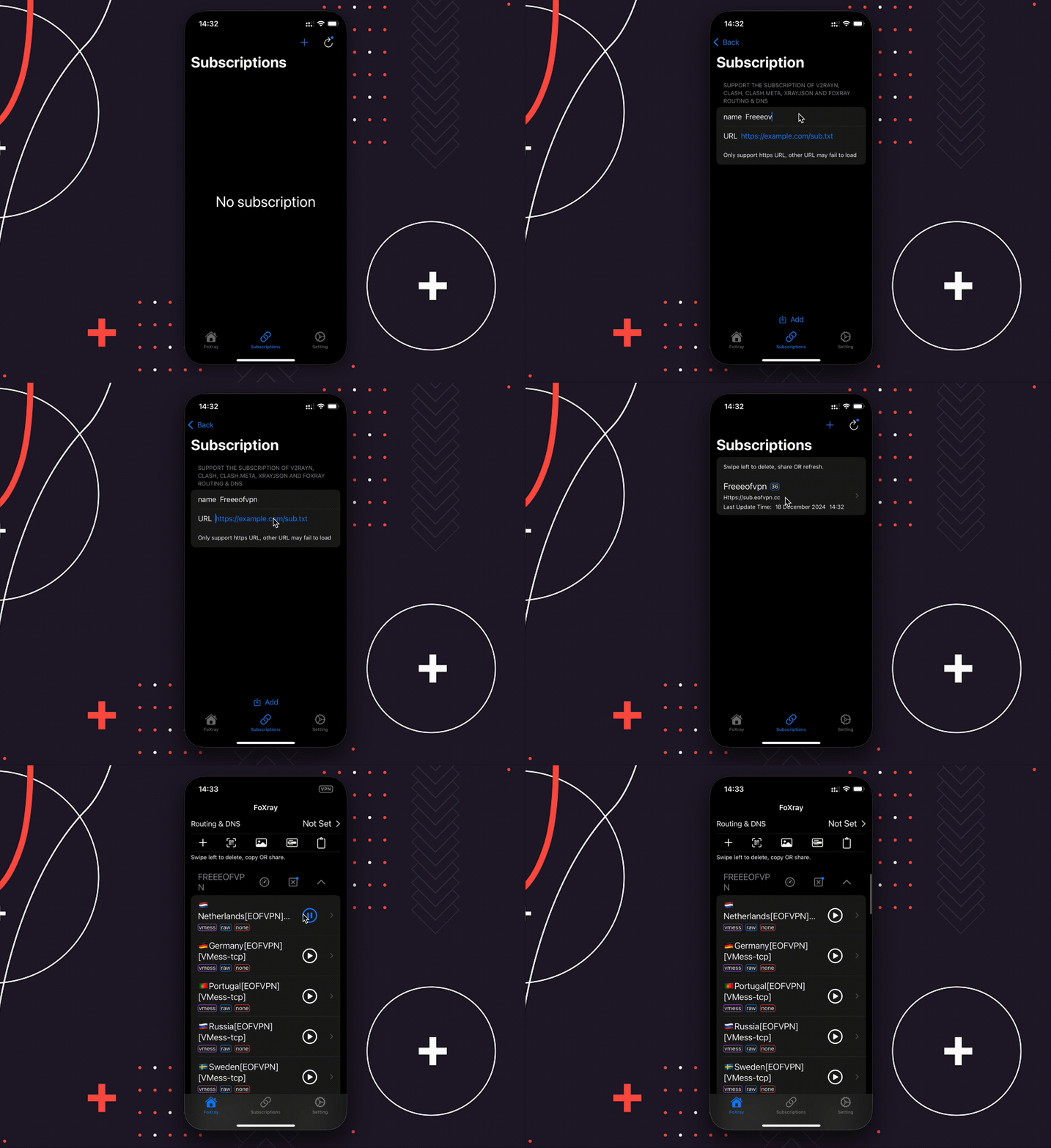 # Outline application
1. Download the Outline app from the AppStore by searching by name or by direct link -> [**Download** Outline ](https://apps.apple.com/us/app/outline-app/id1356177741)
2. Go to [configurations](https://sub.eofvpn.cc/) (configurations are provided with the free VPN subscription. Premium users are given a personalized subscription link).
The Outline application works ONLY with SHADOWSOCKS keys. Other vmess/vless/trojan keys are not accepted by Outline!
3. Repeat the steps from the instructions in the GIF below
# Outline application
1. Download the Outline app from the AppStore by searching by name or by direct link -> [**Download** Outline ](https://apps.apple.com/us/app/outline-app/id1356177741)
2. Go to [configurations](https://sub.eofvpn.cc/) (configurations are provided with the free VPN subscription. Premium users are given a personalized subscription link).
The Outline application works ONLY with SHADOWSOCKS keys. Other vmess/vless/trojan keys are not accepted by Outline!
3. Repeat the steps from the instructions in the GIF below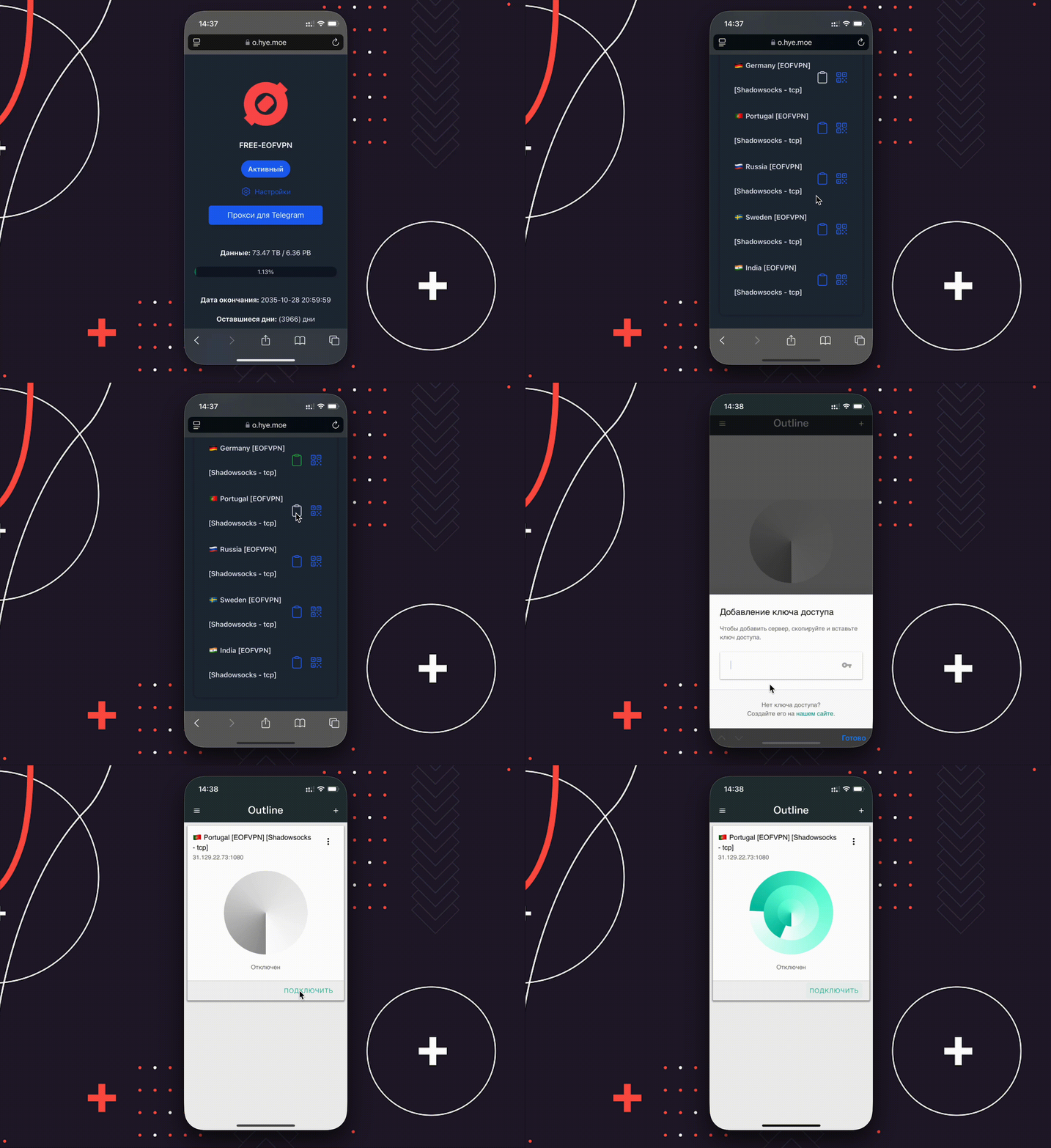 We do not recommend using the Outline application in the Russian Federation. Keys in Outline are not updated automatically, only in manual mode!
ShadowSocks protocol is blocked on the territory of the Russian Federation by mobile operators and some ISPs! Use Vmess/Vless/Trojan and other protocols.
We do not recommend using the Outline application in the Russian Federation. Keys in Outline are not updated automatically, only in manual mode!
ShadowSocks protocol is blocked on the territory of the Russian Federation by mobile operators and some ISPs! Use Vmess/Vless/Trojan and other protocols.