> ## Documentation Index
> Fetch the complete documentation index at: https://docs.eofvpn.cc/llms.txt
> Use this file to discover all available pages before exploring further.
# Private Proxy
> Configuring connection to private EOF proxies
# Proxy in Google Chrome browser
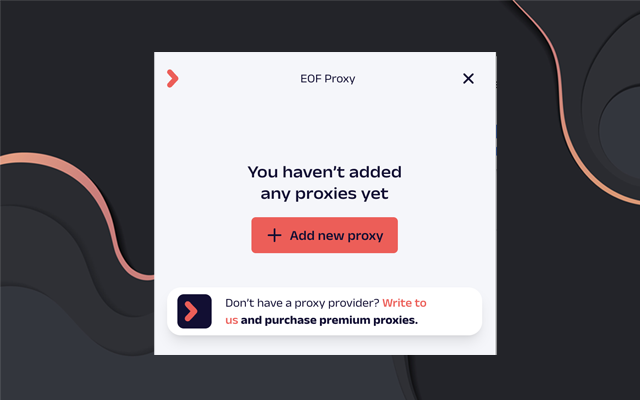
Free proxy servers are available on our website [GO OVER](https://en.eofvpn.cc/free-eof-proxy/)
Install the extension from the Chrome Web Store by clicking [here](https://chromewebstore.google.com/detail/eof-proxy-extension/nggphodacgjjheedbfijpdipehaogpng)
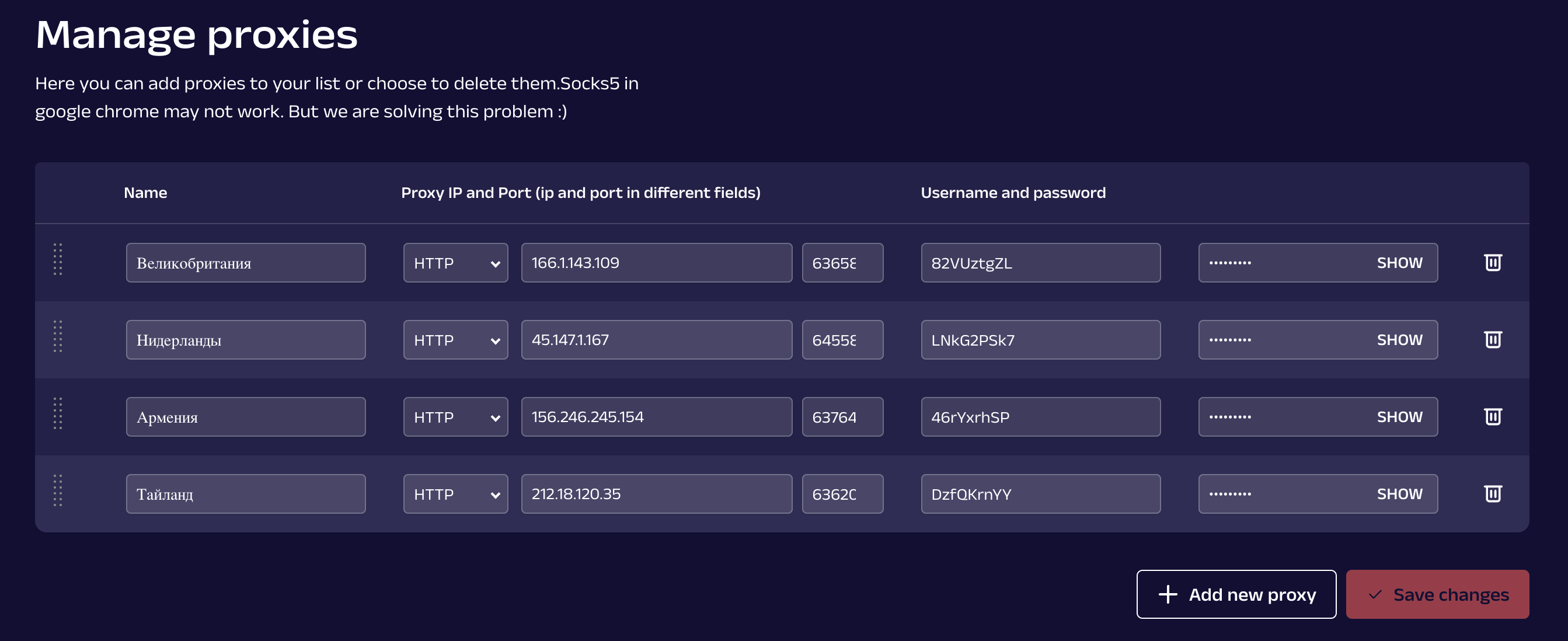
In the window that appears, click **Manage proxies** 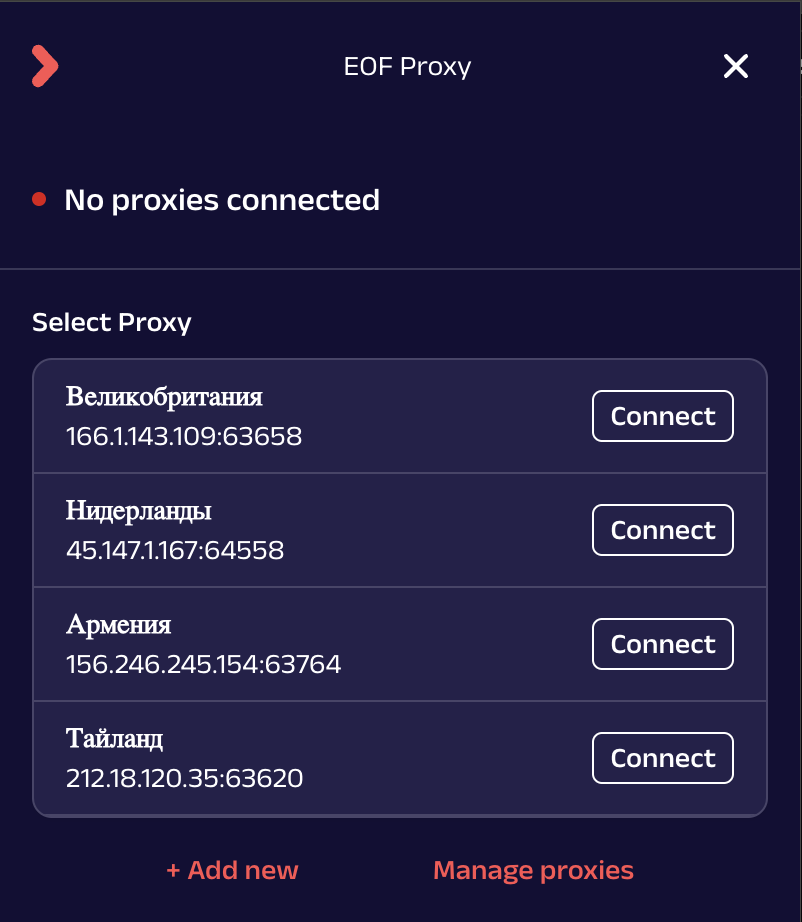 In the proxy manager, click Add new proxy and enter data in the fields:
\- **Name** - name of your connection (specify the country for convenience);
\- **Proxy IP and Port (ip and port in different fields)** - in the first field select http protocol, in the second field enter ip address, in the third field specify port;
\- **Username and password** - in the first field specify login, in the second field specify password;
In the proxy manager, click Add new proxy and enter data in the fields:
\- **Name** - name of your connection (specify the country for convenience);
\- **Proxy IP and Port (ip and port in different fields)** - in the first field select http protocol, in the second field enter ip address, in the third field specify port;
\- **Username and password** - in the first field specify login, in the second field specify password;
 There may be problems with VPN and proxy working together in the browser. Only HTTP connection works in Chrome!
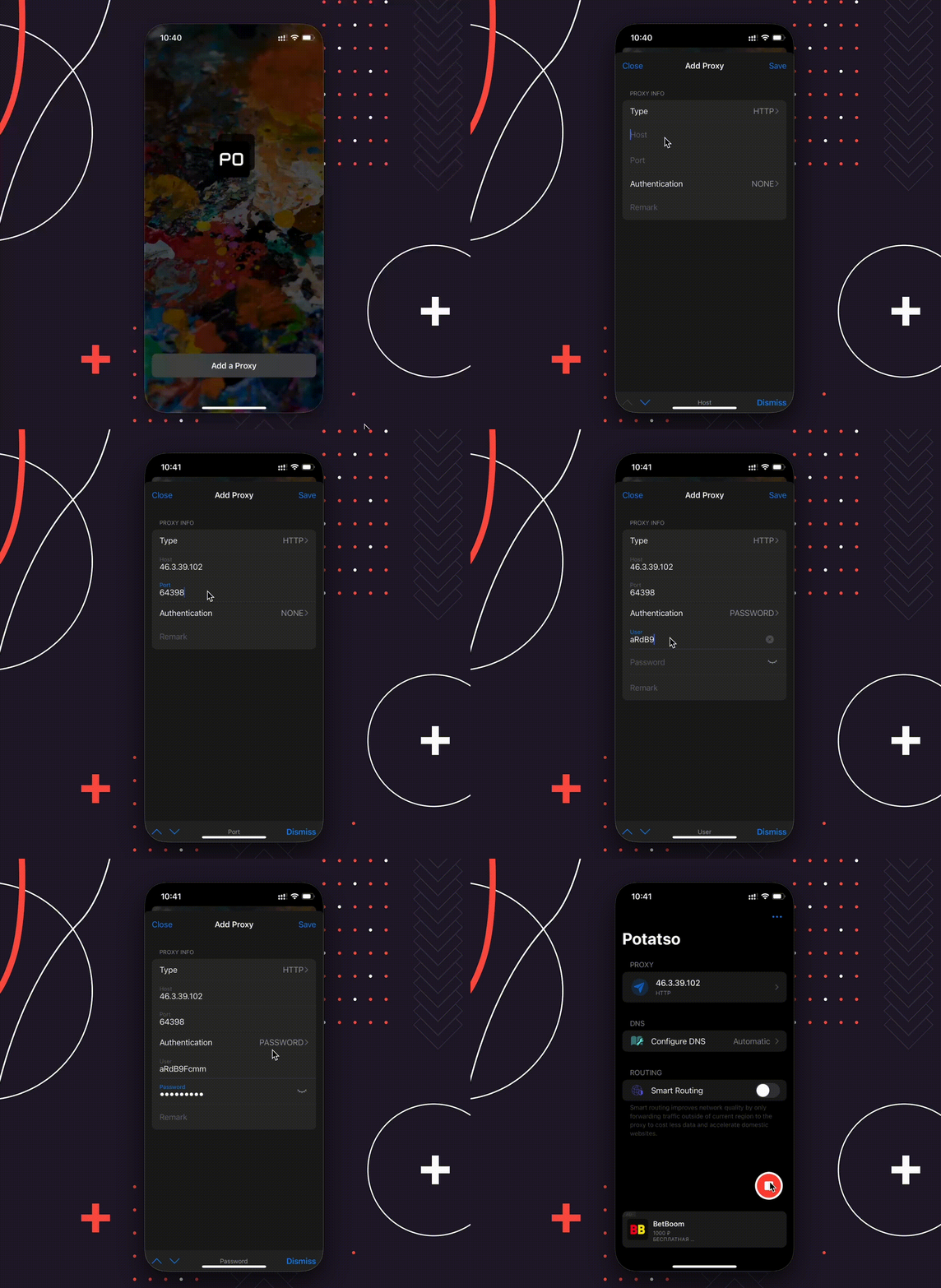
# Potatso on iOS/macOS
Install the application from the AppStore by clicking [on the link](https://apps.apple.com/ru/app/potatso/id1239860606)
Instructions in GIF:
There may be problems with VPN and proxy working together in the browser. Only HTTP connection works in Chrome!
# Potatso on iOS/macOS
Install the application from the AppStore by clicking [on the link](https://apps.apple.com/ru/app/potatso/id1239860606)
Instructions in GIF: