> ## Documentation Index
> Fetch the complete documentation index at: https://docs.eofvpn.cc/llms.txt
> Use this file to discover all available pages before exploring further.
# Configuring Rules and Exceptions in Windows Firewall
> In this article we'll look at how to configure the Windows firewall to ensure that EOFVPN works with Nekoray, v2rayN and other applications when using a server/client scheme.
A firewall or firewall is a set of programs that provide network security for your computer. The main task of a firewall is to filter network traffic to protect your computer from unauthorized access from the network.
You must have administrator privileges on your computer to perform the steps described.
Click “Start” , then open “Settings” . In the “Privacy and Security” section, select “Virus and Threat Protection”.
Under “Virus and Threat Protection Settings”, select “Manage Settings”, and then under “Exceptions”, select “Add or Remove Exceptions”.
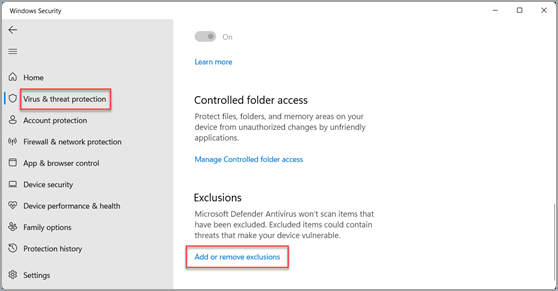
Select Add Exception, and then select from “**Files**”, “**Folders**”, “**File Types**” or “**Process**”. The folder exception will also apply to all subfolders in the folder.
We need to select the folder with the Nekoray or v2Ray program.
Go to Start > Settings > Update and Security > Windows Security > Virus and Threat Protection.
Under “Virus and Threat Protection Settings”, select “Manage Settings”, and then under “Exceptions”, select “Add or Remove Exceptions”.
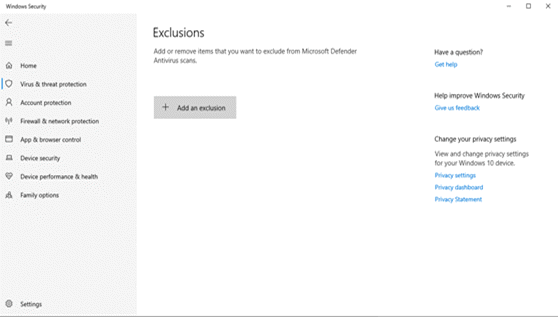
Select Add Exception, and then select from “**Files**”, “**Folders**”, “**File Types**” or “**Process**”. The folder exception will also apply to all subfolders in the folder.
We need to select the folder with the Nekoray or v2Ray program.
This documentation is built and hosted on [Mintlify](https://mintlify.com), a developer documentation platform.